
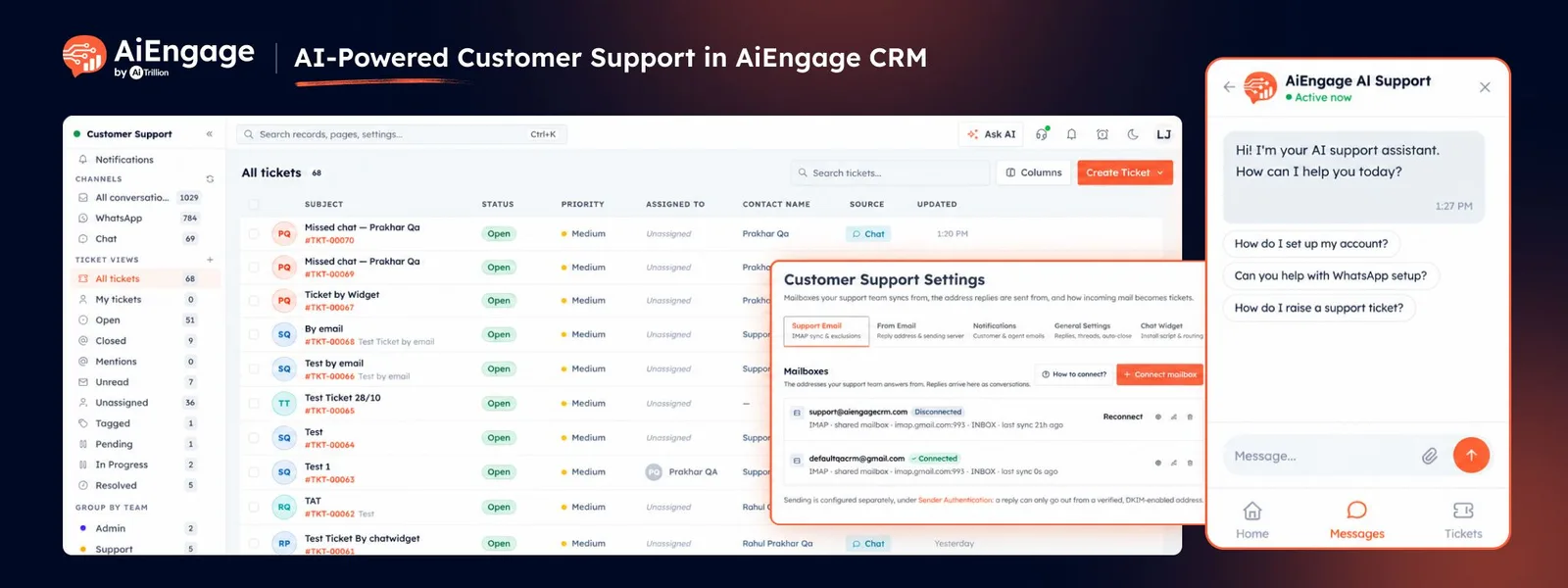
Manage Customer Requests With AI-Powered Customer Support In AiEngage CRM
What if every customer request could be tracked, every conversation stayed organized, and your support team always knew what needed attention?
With Customer & Support in AiEngage CRM, you can bring customer queries, support conversations, and tickets into one centralized workspace. Your AI agent can respond to customer questions first, while requests that need human assistance can be handed over to your team. From creating tickets to assigning owners and tracking resolutions, everything stays connected in your CRM.
Whether a customer reaches out through website chat, WhatsApp, or email, your team can manage support requests without losing track of conversations or pending issues.
🆕 Features
Let Your AI Agent Handle Customer Queries First
Give customers an instant way to get answers through your AI agent. When a customer starts a conversation through your website chat widget, the AI agent can respond to their questions and help resolve common queries.
When a customer needs additional assistance, they can request to speak with a human agent so your team can take over the conversation.
Let the AI agent respond to customer queries first.
Allow customers to request assistance from a human agent.
Bring conversations that need personal attention to your support team.
Keep customer interactions organized within your support workflow.
This helps your team handle customer queries more efficiently while making human assistance available when needed.
Convert Customer Conversations into Support Tickets
Not every customer request can be resolved immediately. With Customer & Support, requests that need further attention can be tracked as tickets, giving your team a clear way to manage and resolve them.
Tickets can be created through supported customer communication channels or added manually by your team.
Create tickets from website chat conversations.
Receive tickets generated from connected support emails.
Manage requests that originate from WhatsApp conversations.
Create tickets manually when a customer raises an issue over a phone call or in person.
Every ticket becomes a trackable record, helping your team keep customer requests organized instead of relying on scattered messages and inboxes.
Manage All Support Tickets in One Workspace
The Customer & Support workspace gives your team a centralized place to view and manage customer issues.
Each ticket contains essential information to help your team understand the request and take the appropriate action.
Ticket Number: A unique reference for each customer request.
Subject & Description: Details explaining the customer's issue or requirement.
Status: Track whether a ticket is Open, Pending, In Progress, Resolved, or Closed.
Priority: Mark requests as Low, Medium, High, or Urgent.
Category: Classify tickets, such as Billing Issues or Bug Reports.
Owner: Identify the team member responsible for handling the request.
Contact: Keep the ticket connected to the customer who raised it.
Conversation Thread: Review customer messages, team replies, and private internal notes.
Source: Identify where the ticket originated.
With these details available in one place, your team can understand each request, coordinate responses, and follow its progress until completion.
Assign Tickets and Notify the Responsible Agent
Make ticket ownership clear so customer requests have someone responsible for handling them.
When a ticket is assigned to a team member, the assigned agent receives a notification, helping them identify requests that need their attention.
Assign tickets to the appropriate team member.
Identify who is responsible for each customer request.
Notify agents when tickets are assigned to them.
Keep ownership visible so requests are easier to track.
Clear ownership helps your support team coordinate work and reduces the chances of customer requests being overlooked.
Track Tickets from Open to Resolution
Every ticket has a status that shows where it stands in the support process. Your team can update the status as work progresses, making it easier to identify what needs attention.
The typical ticket workflow follows these stages:
Open → Pending → In Progress → Resolved → Closed
Open: A new ticket that needs attention.
Pending: A ticket waiting for a response or another required action.
In Progress: A team member is actively working on the request.
Resolved: The issue has been addressed.
Closed: The ticket has been closed after resolution.
Your team can also reopen tickets when a previously resolved issue requires further attention.
This gives everyone a clearer view of ongoing requests, pending responses, and completed support work.
Prioritize Customer Requests
Not every support request requires the same level of urgency. Customer & Support lets your team assign priorities to tickets so they can decide what needs attention first.
Choose from four priority levels:
Low: Requests that can be handled during routine support work.
Medium: Standard requests that need attention.
High: Issues that require quicker action.
Urgent: Requests that need immediate attention.
You can also use ticket categories to organize requests by type, such as billing questions or bug reports.
By combining priority, category, status, and ownership, your team can organize its workload and focus on the right issues.
Keep Customer Conversations and Internal Notes Together
Support often involves more than a single customer message. Your team may need to ask questions, share updates, or coordinate internally before resolving an issue.
Each ticket includes a conversation thread that keeps the relevant communication together.
Review customer messages and team replies in context.
Keep the conversation connected to its ticket.
Add private internal notes for team coordination.
Refer back to previous interactions when continuing a request.
This helps your team maintain context throughout the support process without having to piece together conversations from multiple places.
Connect Support Tickets to Your Customer Records
Because Customer & Support is part of AiEngage CRM, tickets are connected to the wider customer record.
Your team can use this context to understand who raised a request and review relevant customer information alongside the issue.
Identify the contact associated with a ticket.
Keep customer requests connected to their CRM records.
Refer to relevant customer and conversation details while handling support.
Maintain a more organized history of customer interactions.
This helps your team approach support with better context rather than treating every request as an isolated conversation.
❤️ Why You'll Love It
AI-First Customer Support: Let your AI agent answer customer queries before involving your team when needed.
Human Handover: Make it possible for customers to request assistance from a human agent.
Centralized Ticket Management: Bring support requests into one organized workspace.
Multiple Ticket Sources: Manage requests from website chat, WhatsApp, email, and manual creation.
Clear Ticket Ownership: Assign requests to team members and notify them when tickets are assigned.
Status Tracking: Follow tickets from Open to Closed and identify requests that need attention.
Priority-Based Support: Highlight urgent issues and organize work by importance.
Organized Conversations: Keep customer messages, team replies, and private notes together.
Connected Customer Records: Keep support requests associated with the relevant CRM contact.
Better Team Coordination: Give your team visibility into ticket ownership, progress, and outstanding work.
🎯 Use Cases
Website Customer Support: Let the AI agent respond to common questions and direct customers to human assistance when needed.
Billing Questions: Create and prioritize tickets for payment concerns, invoices, or billing issues.
Technical Support: Track bug reports and technical problems through the ticket lifecycle.
WhatsApp Support: Manage customer requests that originate from WhatsApp conversations.
Email-Based Support: Turn incoming emails into tickets and keep customer replies associated with the same ticket.
Phone and In-Person Requests: Create tickets manually when customers raise issues outside digital support channels.
Team Handoffs: Assign tickets to the right team member and notify them when responsibility is assigned.
Pending Customer Responses: Track tickets waiting for additional information or a customer reply.
Follow-Up on Resolved Issues: Reopen tickets when customers need further assistance with a previously addressed problem.
Customer Request Tracking: Give your team a clear view of open, pending, ongoing, and completed support requests.
For more information, visit the AiEngage CRM Help Center or contact the AiEngage CRM support team.
New to AiEngage CRM? Sign Up