Sync Your Calendar & Configure Multiple Bookings Per Time Slot
What if customers could choose an available slot, book a meeting, and receive their Google Meet link automatically? With Google Meet booking and calendar sync in AiEngage CRM, customers can schedule meetings directly through your booking page. Each booking gets its own Google Meet link and a Google Calendar event with the joining details. You can also control how many bookings each time slot accepts, helping your team handle multiple meetings at the same time.
🆕 Features
Create a Google Meet Link for Every Booking
Connect your Google account and select Google Meet as the meeting platform while setting up your booking event. Whenever a customer books a slot, AiEngage automatically generates a unique Google Meet link and includes it in the invitation and calendar event.
Connect your Google account.
Select Google Meet as the booking platform.
Generate a unique meeting link for each booking.
Include the joining link in the calendar invitation.
Save the link with the CRM meeting record.
Optionally use your own permanent Google Meet link.
Customer Selects a Slot → Meeting Booked → Google Meet Link Generated → Calendar Invitation Sent.
Accept Multiple Bookings per Time Slot
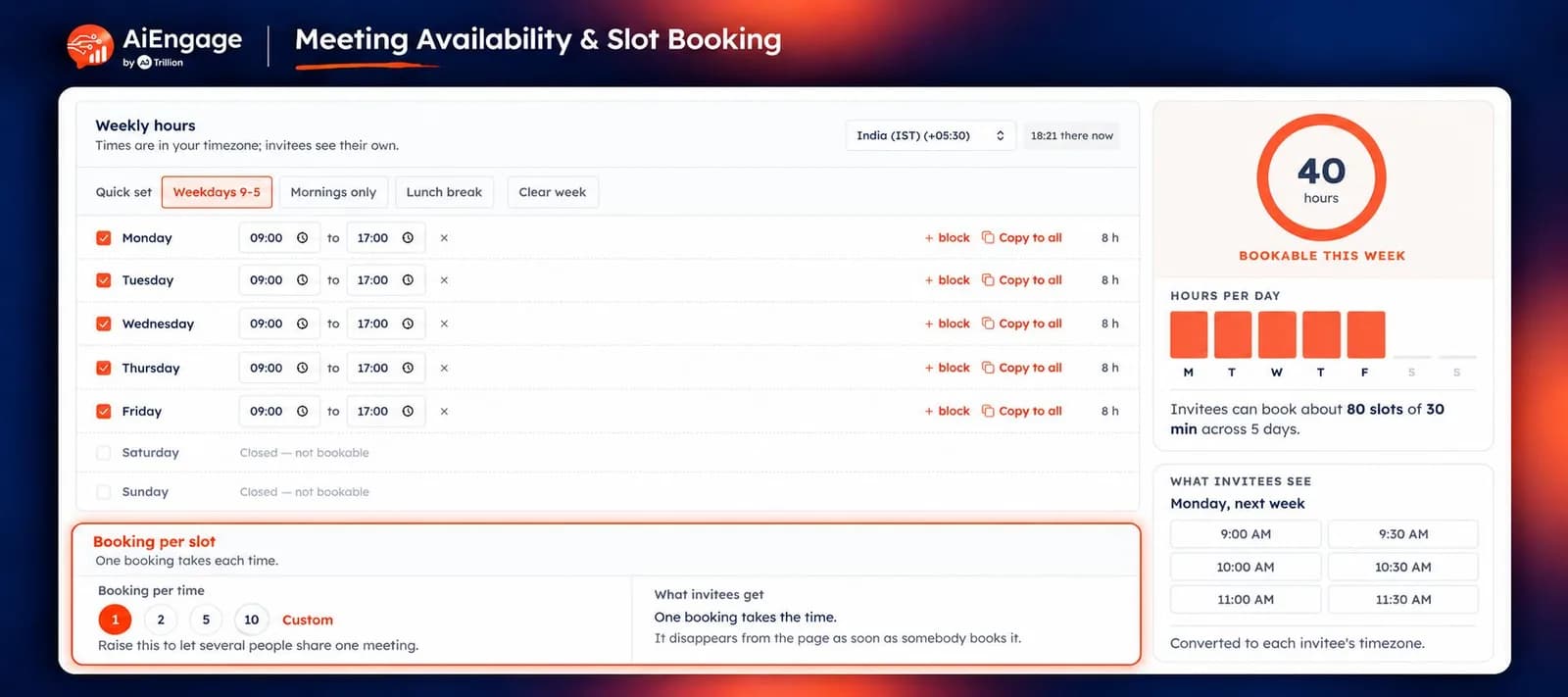
You can now set the number of bookings allowed in each time slot. For example, if five team members are available to conduct separate meetings at 11:00 AM, you can configure that slot to accept five bookings. This helps you:
Set booking capacity based on your team's availability.
Accept multiple bookings for the same time.
Support simultaneous demos, consultations, or onboarding sessions.
Manage booking capacity from your calendar setup.
Each Google Meet booking receives its own meeting link when automatic link generation is enabled.
Show Available Slots on Your Booking Page
Customers can view available dates and time slots directly on your booking page and choose a convenient time. Your configured availability and bookings-per-slot limit determine the booking options.
Display available dates and time slots.
Let customers select their preferred time.
Collect booking details through the booking form.
Keep the resulting meeting connected to the customer in AiEngage CRM.
Sync AiEngage CRM Meetings with Google Calendar
Connect your Google Calendar to keep meetings scheduled through AiEngage reflected in your calendar. Each booking creates a Google Calendar event containing the meeting details and Google Meet link. Rescheduling or cancelling the meeting in AiEngage updates or removes the corresponding Google Calendar event.
Automatically create Google Calendar events.
Include the meeting joining link.
Reflect reschedules made in AiEngage.
Remove calendar events when meetings are cancelled in AiEngage.
View the connected Google account during setup.
Each team member hosting meetings should connect their own Google account.
Track Google Meet Status
AiEngage checks Google Meet activity and updates the CRM meeting status as the call progresses.
Scheduled → In Progress → Completed.
This helps your team track which meetings have started and which have finished. Status updates depend on Google reporting the call activity. A meeting that nobody joins remains scheduled.
Access Meeting Recordings from the CRM
When a call is recorded in Google Meet, AiEngage finds the available recording and displays its link on the meeting record. Your team can open the meeting to access:
Meeting joining link
Meeting status
Available recording link
Transcript and AI summary when captured by the AiEngage AI Notetaker
Google Meet recordings appear after processing. Transcripts and AI summaries require the CRM's meeting-capture feature.
Offer Flexible Meeting Options
Choose the meeting formats available when setting up your booking event.
Google Meet
Zoom
In-person meeting
Phone call
You can enable multiple options so customers can choose their preferred format while booking.
Connect Zoom & Generate Meeting Links
The Zoom extension is now live, allowing your team and external clients to connect their Zoom accounts with AiEngage CRM. Select Zoom as the platform for your booking event. Each booking automatically gets a Zoom joining link through the connected account.
Connect your Zoom account.
Select Zoom as the booking platform.
Automatically generate a joining link for each booking.
Include the link in the meeting invitation.
Keep the link saved with the CRM meeting record.
❤️ Why You'll Love It
Easier Customer Booking: Customers can choose an available slot directly from your booking page.
More Flexible Capacity: Accept multiple bookings at the same time based on your team's availability.
Automatic Meeting Links: Generate a dedicated Google Meet link for every booking.
Connected Calendars: Keep bookings, reschedules, and cancellations reflected in Google Calendar.
Clear Meeting Progress: Automatically track when Google Meet calls start and finish.
Accessible Meeting Context: Keep joining links, available recordings, and meeting details connected to the CRM.
Less Scheduling Work: Automate link generation and calendar event creation.
🎯 Use Cases
Sales Demos: Let prospects book a demo and automatically receive a Google Meet invitation.
Multiple Sales Representatives: Allow five bookings in the same slot when five representatives can conduct separate meetings.
Education Counselling: Accept simultaneous appointments based on the number of available counsellors.
Customer Onboarding: Let customers choose a convenient onboarding slot with an automatically generated meeting link.
Consultations: Match booking capacity to the number of consultants available.
Follow-Up Meetings: Keep scheduled meetings and changes reflected in Google Calendar.
For more details on enabling and using this feature, visit Meetings & Calendars or contact Help Center or support team.
New to AiEngage CRM? Sign Up