Let Your AI Meeting Assistant Record, Transcribe & Summarise Meetings
What if your meeting notes, recording, and next steps were ready for you after the call? With the AI Note Taker in AiEngage CRM, a meeting assistant can join your online meetings and capture recordings, written transcripts, and AI summaries of key discussion points, decisions, and next steps. You control which meetings it joins, which calendars have it enabled, what content gets saved, and whether email notifications are sent.
🆕 Features
Choose Which Meetings Need an AI Assistant
Enable the AI Note Taker for meetings where you want the conversation captured. You can enable or disable it for individual meetings based on your requirements.
Enable the assistant for selected meetings.
Disable it for meetings that do not need capture.
Choose whether to save recordings and transcripts or generate AI summaries.
Keep the captured content connected to the meeting record.
This gives your team control over when the assistant participates and what it keeps.
Enable or Disable the Assistant for Each Calendar
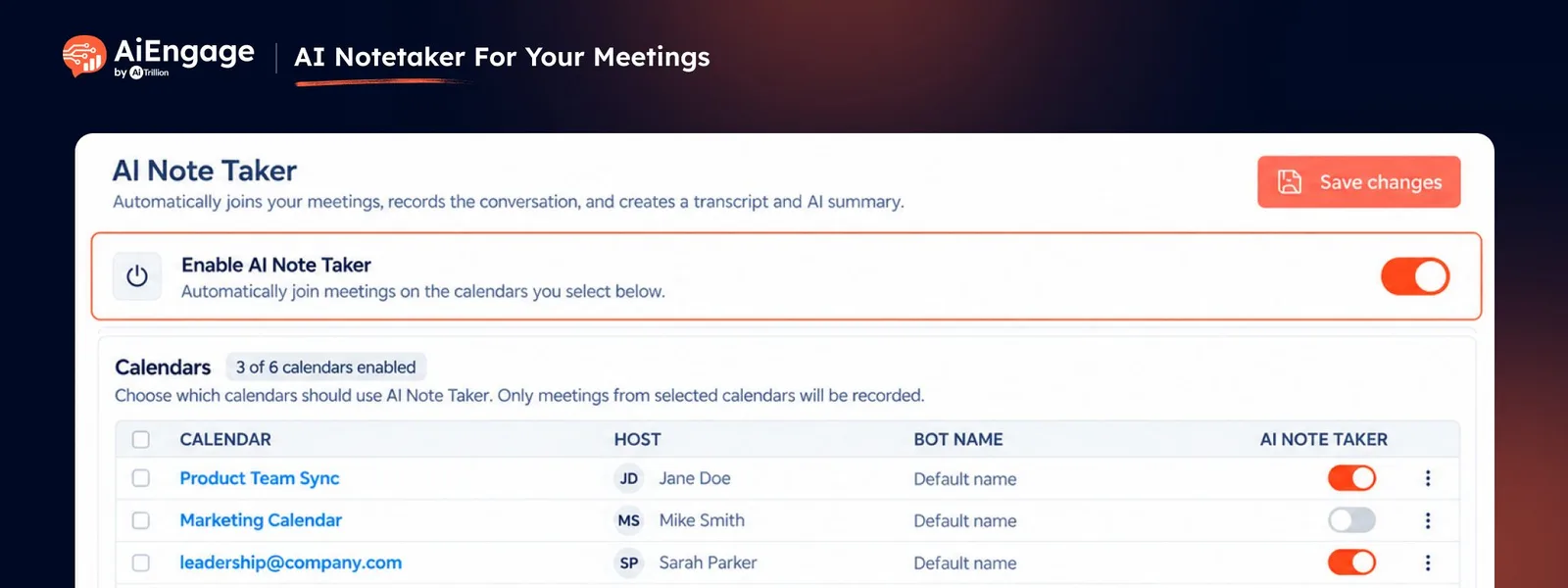
If your team manages multiple booking calendars, you can control the AI Note Taker separately for each one. For example, enable it for your Sales Demo and Customer Onboarding calendars and keep it disabled for your Internal Check-In calendar.
View your booking calendars and their hosts.
Enable or disable the assistant for each calendar.
Use different settings for calendars owned by the same person.
See how many calendars have the assistant enabled.
Set a custom assistant name for individual calendars.
The main Enable AI Note Taker switch controls whether the assistant can join any meeting.
Control Recordings, Transcripts & AI Summaries Separately
Choose the meeting content your team needs with independent controls for each output.
Save the Recording: Keep a video recording for later review.
Save the Transcript: Keep a written version of the conversation.
Create an AI Summary: Generate key discussion points, action items, and next steps.
For example, you can save a transcript and generate a summary while leaving video storage disabled.
Meeting Assistant Joins → Conversation Captured → Selected Content Saved to CRM.
Capture Follow-Ups with AI Summaries
When AI summaries are enabled, the assistant turns the meeting conversation into a concise overview your team can review afterwards. Summaries help capture:
Key discussion points
Customer requirements
Decisions made
Action items
Follow-ups and next steps
Each automatically generated AI summary uses one AI credit per meeting. Recording and transcription do not spend AI credits; note-taker time is subject to your plan's allowance.
Enable or Disable Email Notifications
You can also turn email notifications on or off based on your meeting process. Enable emails when notifications are useful for your team's workflow, or disable them when they are unnecessary. This gives you control over both meeting capture and the notifications that accompany it.
Give Your Meeting Assistant a Recognizable Name
Customize the name participants see when the assistant joins the meeting.
Set a default assistant name.
Override the name for specific calendars.
Use a recognizable company or team name.
For example, your team can use "AiEngage Meeting Assistant" or "Sales Meeting Notetaker."
Control How the Assistant Joins & Leaves
Configure the assistant's meeting behavior to match how your team works.
Choose when the assistant joins.
Display a notice when participants are being recorded.
Set how long it waits for admission.
Set when it leaves if nobody joins.
Limit the maximum recording time.
Set when it leaves after everyone exits.
Enable joining without waiting for approval on Google Meet.
These controls help manage late starts, empty meetings, and recording duration.
Manage Recordings from One Place
The Recordings section brings captured meetings together, so your team can find and review them.
Search by meeting title or host.
Filter by host and date.
View recording duration and file size.
Check whether a transcript or summary is available.
Watch and download recordings stored in AiEngage.
Delete recordings you no longer need.
Zoom recordings marked Provider only remain stored in Zoom and are accessed there. Deleting a video stored in AiEngage keeps its transcript on the meeting record.
Keep Meeting Content Connected to the CRM
Open a meeting record to access the content captured for that conversation. Depending on your enabled options, the record can include:
Recording link
Playback and download options for stored recordings
Written transcript
AI-generated summary
Whether the note taker was requested for the meeting
Your team can review the discussion and prepare follow-ups from the same CRM record.
❤️ Why You'll Love It
More Focused Conversations: Let the assistant capture meeting details while your team engages with the customer.
Meeting-Level Control: Choose which meetings need the assistant.
Calendar-Level Flexibility: Enable or disable it separately for each booking calendar.
Your Choice of Content: Control recordings, transcripts, and summaries independently.
Clearer Follow-Ups: Review decisions, action items, and next steps after the call.
Flexible Notifications: Turn email notifications on or off to suit your process.
Connected Meeting History: Keep captured content accessible from the CRM meeting record.
Better Usage Control: Choose where to generate summaries and how much video to retain.
🎯 Use Cases
Sales Demos: Capture prospect requirements, questions, and agreed next steps.
Customer Onboarding: Keep a record of setup discussions, responsibilities, and pending actions.
Discovery Calls: Generate a summary of customer goals and requirements for the sales team.
Consultations: Save transcripts so your team can revisit the details discussed.
Multiple Booking Calendars: Enable the assistant for customer-facing calendars and disable it for selected internal calendars.
Selective Meeting Capture: Turn the assistant on for a detailed review meeting and off for a quick check-in.
Team Handoffs: Help the next owner understand the customer conversation through its transcript and summary.
For more details on enabling and using this feature, visit Meetings & Calendars or contact Help Center or support team.
New to AiEngage CRM? Sign Up