Manage Contact Portfolios & Share Images, Videos, and Documents with One Link
What if your team could organize property photos, project videos, and brochures inside a contact record and share them through a single public page?
With Contact Portfolios in AiEngage CRM, you can upload images, add videos, store documents, and publish selected items through one shareable link.
For real estate agents, this makes it easy to keep a buyer's shortlisted property materials together and share them for review. Businesses showcasing projects, professional work, or services can use the same portfolio tools.
You also control which contact fields appear publicly through Modules and Fields, helping you present the details customers need.
🆕 Features
Manage Portfolios Directly from Contact Records
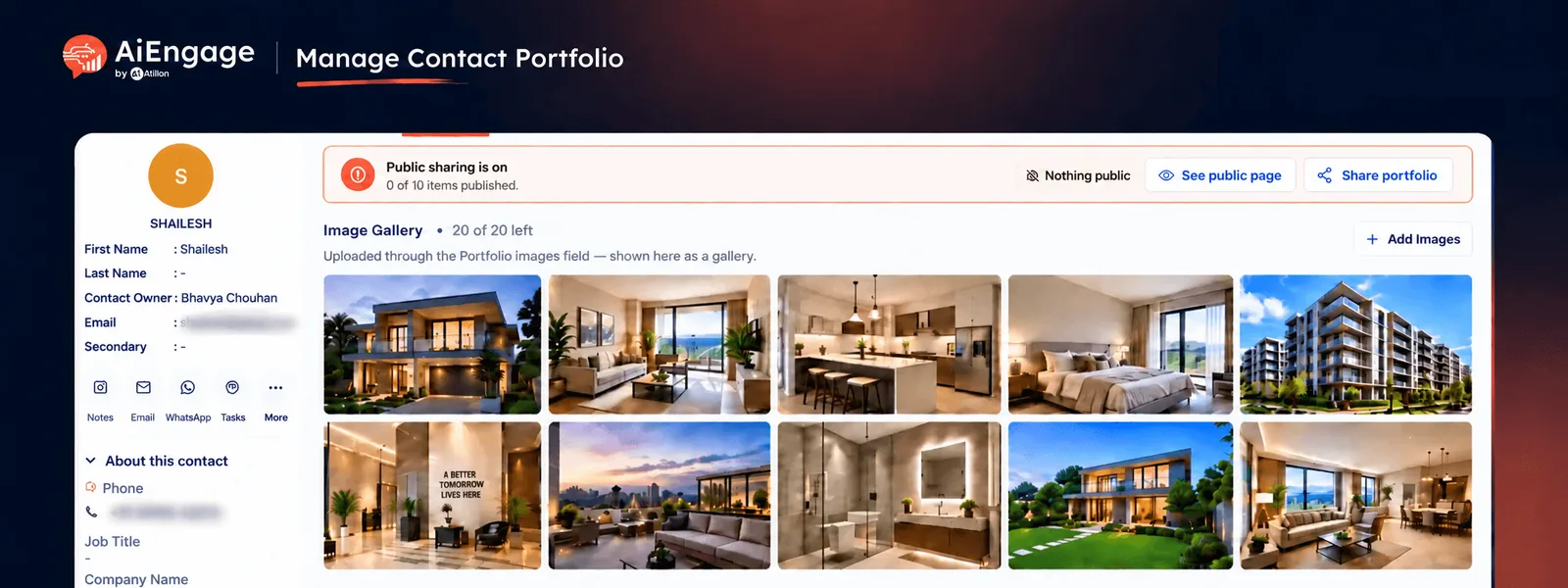
Every contact record now includes a Portfolio tab alongside Overview and Timeline. Open a contact to organize supporting material in three sections:
Image Gallery
Video Gallery
Documents
Leads stored in Contacts can have portfolios too, so your team can start collecting and sharing relevant material early in the customer relationship.
Showcase Property Images, Project Photos & Visual Work
Upload images directly to the contact's Image Gallery. You can select files, drag and drop photos, or paste an image from your clipboard.
Add up to 20 images per contact.
Upload PNG, JPG, GIF, or WEBP files.
Use files up to 10 MB each.
Drag images to arrange their display order.
Choose a cover image for the public page.
Set an avatar image for the portfolio header.
For example, a real estate agent can add photos of shortlisted apartments, interiors, amenities, and floor plans to a buyer's contact portfolio.
Add Walkthrough Videos & Supporting Documents
Bring videos and documents into the same portfolio. For videos, you can:
Upload files up to 50 MB each.
Add YouTube links.
Add Instagram links.
Keep up to 5 videos per contact.
Linked YouTube and Instagram videos remain on their original platforms and do not use upload storage. For documents, you can:
Add property brochures, project presentations, or service information.
Upload PDF, Word, Excel, PowerPoint, CSV, or TXT files.
Keep up to 5 documents per contact.
Upload documents up to 5 MB each.
This gives customers one place to review the material you have selected for them.
Choose Which Portfolio Items Are Public
Every uploaded item starts as Private. Your team can publish individual images, videos, and documents when they are ready to share.
Publish selected items.
Keep internal material private.
Unpublish an item when needed.
See how many items are published.
Preview the public page before sharing.
Uploading a file keeps it inside the CRM until you choose to publish it.
Control Which Contact Fields Appear Publicly
Choose the details displayed alongside the portfolio through Settings → Modules and Fields → Contacts.
Open a field's configuration and use Public visibility to control its appearance on shared pages.
Enable Show on public shared page.
Set a customer-facing Public label.
Keep internal field names unchanged.
Display selected details alongside published portfolio items.
For a real estate use case, relevant contact fields could include preferred location, property type, or budget range, where you have configured these fields and want them visible.
Public visibility is an organisation-wide field setting — enabling a field makes its value eligible to appear on every shared contact portfolio page.
Share the Portfolio Through One Public Link
Once you publish an item and public sharing is enabled, you can copy the portfolio link and send it to the customer. The public page can display:
Cover image
Avatar and contact name
Contact fields marked for public visibility
Published images
Published videos
Published documents
Anyone with the link can open the page without signing in.
Open Contact → Add Portfolio Material → Select Public Items & Fields → Preview → Share Link.
Personalize Portfolio Links in Email & WhatsApp Templates
Use {{portfolio.link}} in an email or WhatsApp template to include each recipient's own contact portfolio link. For example, a real estate team can prepare a different property shortlist for each buyer and send a message that opens that buyer's portfolio. The merge tag resolves to the recipient's portfolio, so the content should be prepared on the correct contact record before sending.
Disable Public Sharing Whenever Needed
You can disable the portfolio's public link while keeping its contents stored in the CRM.
Stop access through the public link.
Retain uploaded files on the contact record.
Unpublish individual items while keeping other material visible.
Review sharing status from the Portfolio tab.
This helps your team manage what remains available outside the CRM.
❤️ Why You'll Love It
Organized Portfolio Management: Keep images, videos, and documents together on each contact.
Simpler Customer Sharing: Send one link containing the selected material.
Personalized Presentations: Prepare a portfolio around each customer's requirements.
Controlled Public Visibility: Choose which files and contact fields appear externally.
Professional Presentation: Add a cover, avatar, and arranged image gallery.
Connected Communication: Include portfolio links in email and WhatsApp templates.
Easy Updates: Manage published content from the same CRM record.
🎯 Use Cases
Real Estate Property Shortlists: Keep a buyer's selected property photos, walkthrough videos, and brochures together, then share one link.
Real Estate Agent Profiles: Build a portfolio on an agent's contact record with selected property material and public professional details.
Architects & Interior Designers: Organize project images, walkthroughs, and presentations for client review.
Creative Professionals: Showcase photography, design work, or video projects through a contact portfolio.
Agencies & Consultants: Share selected case studies, service documents, and presentations.
Customer-Specific Proposals: Prepare relevant documents and visual references for each prospect.
For more details on setting up and sharing Contact Portfolios, visit our Help Center or contact our support team.
New to AiEngage CRM? Sign Up