New Webhook Action in Workflow Automation
With authenticated Webhooks in AiEngage CRM workflows, you can send record data to external systems when a workflow runs. Add API Key or Basic Auth authentication to connect with services that require verified requests. For example, a web form can create a Contact in AiEngage, trigger a workflow, and send the lead's details to a configured third-party AI calling service that uses Plivo to connect the call.
🆕 Features
Trigger External Actions from Your Workflows
Add a Webhook action to send data to another system when your workflow conditions are met. You can use it to:
Send new contact details to an external service.
Pass qualified leads to an AI calling platform.
Send Deal information to a billing tool.
Notify a custom application when a record changes.
Connect CRM activity with your existing business processes.
Choose the trigger, add any required conditions, and configure the Webhook action.
CRM Record Created or Updated → Workflow Conditions Met → Webhook Sent → External System Takes Action.
Authenticate Requests with an API Key
Connect to services that require an API key directly from the Webhook configuration. Select API Key under Authorization and enter:
Key Name: The name expected by the receiving service, such as X-API-Key or Authorization.
Key Value: The key or authorization value supplied by that service.
Add To: Send the key in a request header or URL query parameter, as required.
For services using a Bearer token, you can use Authorization as the key name and Bearer followed by your token as the value.
Connect Services Using Basic Auth
For endpoints that require a username and password, select Basic under Authorization.
Enter the service's username.
Enter its password.
Let AiEngage prepare the authorization header.
This makes it easier to configure authenticated requests from the workflow builder.
Send Each Record's Details with Merge Tags
Use merge tags to personalize the request with data from the record that triggered the workflow. For example, you can send:
Contact name
Phone number
Email address
Lead source
Deal details
Relevant custom field values
Merge tags can be included in the request URL or body, so the receiving system gets the details associated with each workflow run.
Connect Web Form Leads to an AI Calling Flow
Build a workflow that sends new website enquiries to a configured AI voice service. For example:
A visitor submits your enquiry or demo form.
The submission creates a Contact in AiEngage CRM.
A Record Created trigger starts the workflow.
Conditions check the lead source and required details, such as a phone number.
The Webhook sends the contact's details to your AI calling endpoint.
The external service uses Plivo to connect the call to its configured AI voice agent.
Web Form Submitted → Contact Created → Workflow Triggered → Authenticated Webhook → Plivo Connects the Call → AI Voice Agent Handles the Conversation.
Depending on the connected voice agent's setup, the conversation can cover the enquiry, ask qualification questions, or guide the lead towards a demo. The calling service, Plivo connection, and voice agent must be configured separately — the Webhook initiates the external process.
Configure the Request to Match Your External Service
Set up the Webhook using the receiving application's API requirements. You can configure:
HTTP method, such as POST
HTTPS request URL
Custom headers
Request body
Raw JSON data
Authorization method
Record-specific merge tags
If the service provides a cURL example, copy its URL, headers, and body into the corresponding fields in the workflow builder.
Add an Optional Signature for Request Verification
Use a Signing secret when your receiving endpoint supports signature verification. AiEngage adds an X-Webhook-Signature header using HMAC-SHA256. Your external system can validate the signature using the shared secret to check the request's authenticity and integrity. This can be used alongside API Key or Basic Auth authentication.
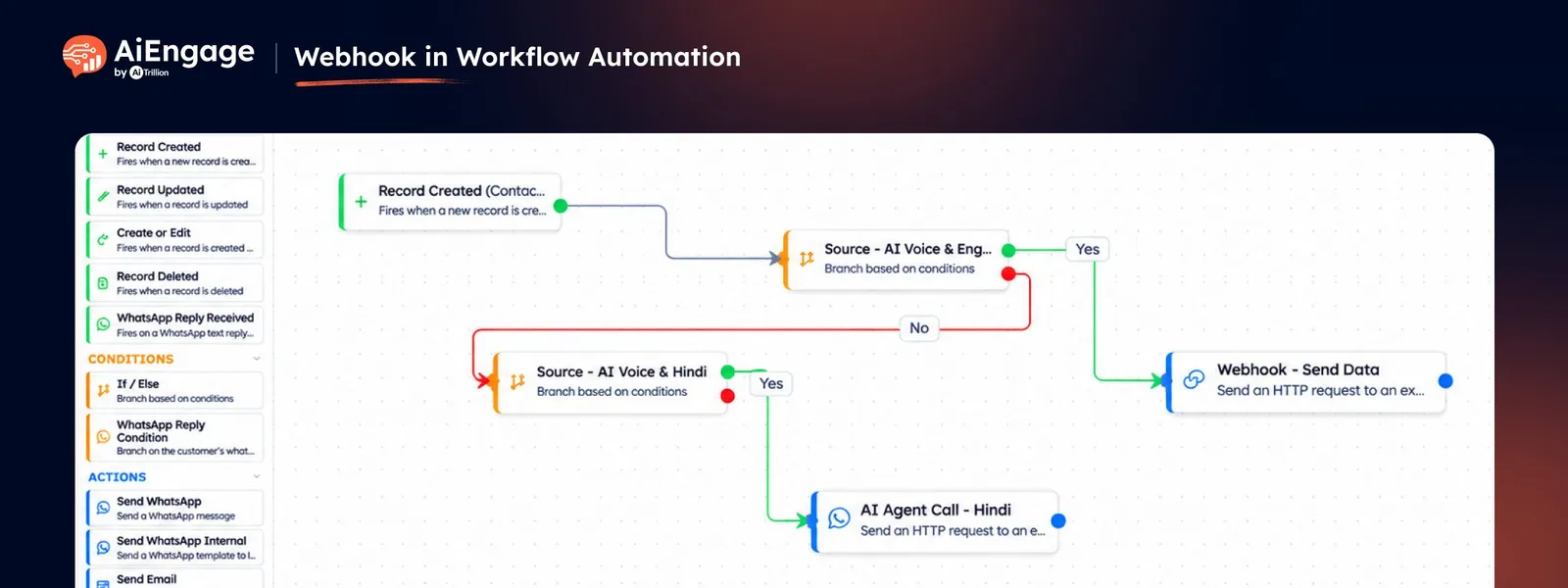
Example Journey
Contact Record Created
→ Check Lead Source
→ Source = AI Voice Test?
→ Yes
→ Check AI Voice Language
→ English or Hindi
→ Trigger Matching Webhook
→ AI Agent Starts the Conversation.
❤️ Why You'll Love It
Connected Business Tools: Send CRM data to external apps directly from workflows.
Automated Lead Handoffs: Pass new enquiries to configured calling or follow-up services.
Flexible Authentication: Connect using API Key or Basic Auth.
Record-Specific Data: Send each lead's details through merge tags.
Less Manual Transfer: Reduce repeated copying between systems.
Custom Workflow Control: Choose which triggers and conditions initiate external actions.
AI Calling Possibilities: Connect web form enquiries to a third-party AI voice flow using Plivo.
🎯 Use Cases
AI Calling for Demo Enquiries: Send a new demo request to a configured voice agent that calls through Plivo.
Real Estate Lead Follow-Ups: Pass a property enquiry to an AI calling service to ask about location, budget, and site-visit interest.
Education Admissions: Trigger a configured voice flow after a student submits an enquiry form.
Sales Qualification: Send contacts that meet your workflow conditions to an external qualification service.
Billing Handoffs: Send Deal details to a billing application when a Deal reaches the required stage.
Custom App Updates: Notify your internal tools when relevant CRM records are created or updated.
For more details on configuring workflow Webhooks, visit our Help Center or contact our support team.
New to AiEngage CRM? Sign Up