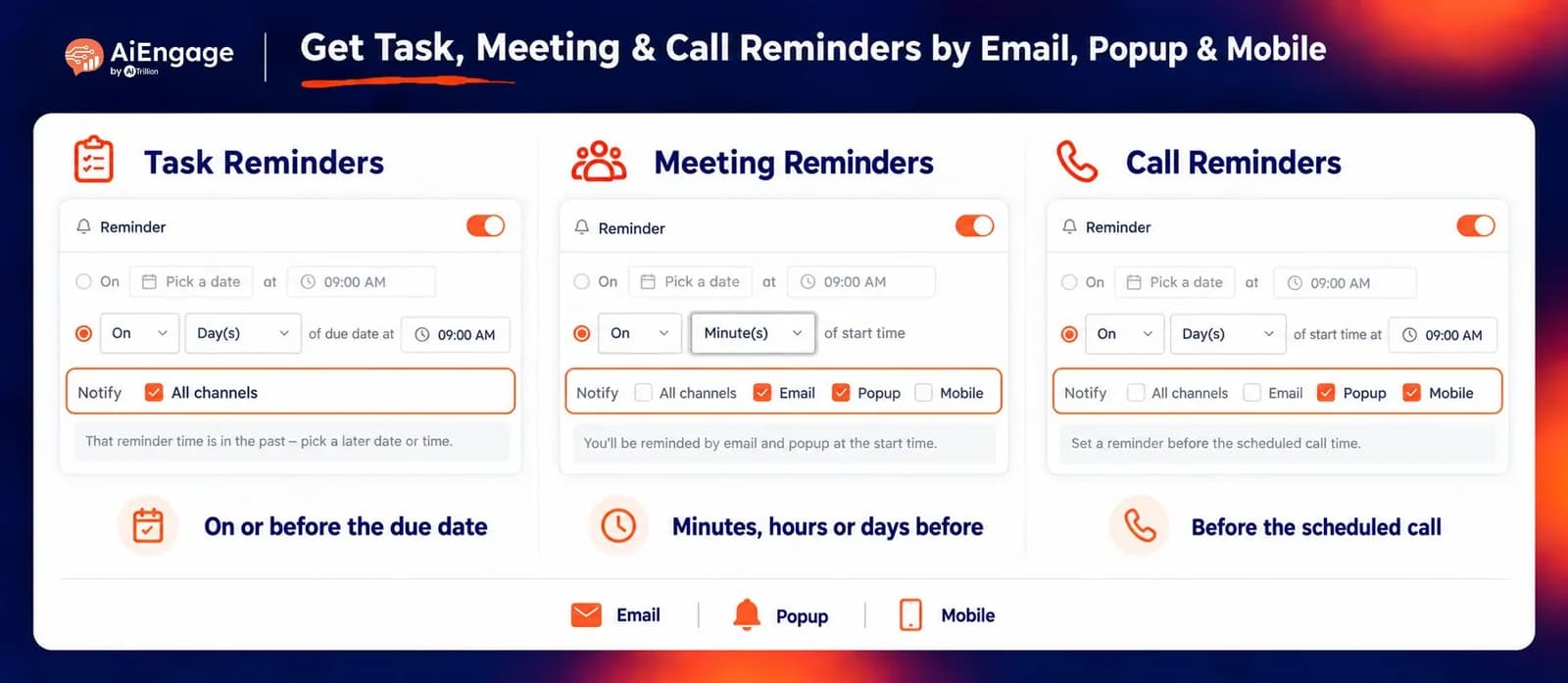
Get Task, Meeting & Call Reminders by Email, Popup & Mobile
Multi-channel reminders in AiEngage CRM let you receive notifications for your Tasks, Meetings, and Calls through Email, Pop-up, and Mobile.
Set a reminder for an exact date and time, on a task’s due date, or a chosen number of days before it. For meetings and calls, you can also choose minutes or hours before the start time.
🆕 Features
Choose Email, Popup, Mobile, or All Three
Select how you want each record’s reminder delivered.
Email: Send the reminder to the record owner’s email.
Popup: Show the reminder inside AiEngage CRM.
Mobile: Send a push notification to the owner’s mobile device.
All Channels: Enable Email, Popup, and Mobile together.
You can select one channel or combine several for the same reminder. Email is selected by default.
Set Reminders for an Exact Date & Time
Choose a specific date and time when you want the notification to arrive.
For example, set a reminder for September 25 at 9:00 AM to prepare for a customer follow-up or review a pending task.
Choose the reminder date
Set the notification time
Select your preferred channels
Review the timing summary before saving
This gives you control over when the reminder arrives.
Get Reminded On or Before a Task’s Due Date
Set task reminders based on the Due Date.
Choose a reminder on the due date itself or a selected number of days before it, then set the time of day.
For example:
On the due date at 9:00 AM
One day before the due date at 10:00 AM
Two days before the due date at 3:00 PM
Task reminders use Day(s) for relative timing, with a separate time picker to specify when the notification should arrive.
Set Meeting & Call Reminders in Minutes, Hours, or Days
Prepare for scheduled conversations with reminders based on their start time.
Meetings: Reminders count back from the meeting’s From time.
Calls: Reminders count back from the Call Start Time.
You can choose:
Minutes before the start time
Hours before the start time
Days before, at a selected time of day
For example, receive an Email and Popup reminder 30 minutes before a demo, or a Mobile reminder one hour before a scheduled call.
Schedule the Activity → Set Reminder Timing → Choose Channels → Owner Receives the Reminder.
Notify the Person Responsible for the Activity
Reminders go to the record’s assigned owner.
Task reminders go to the Task Owner
Meeting reminders go to the Meeting Owner
Call reminders go to the Call Owner
If a manager creates a task for a colleague, that colleague receives the reminder. This keeps notifications aligned with responsibility.
Review Your Reminder Before Saving
The Reminder panel displays a plain-language summary of your selected timing and channels.
For example:
“You’ll be reminded by email, pop-up, and mobile 2 days before the due date, at 9:00 AM.”
The summary updates as you change your selections. If the chosen reminder time is in the past, a warning asks you to select a later date or time.
Create, Edit & Disable Reminders from the Record
Set reminders while creating a Task, Meeting, or Call, or add them later through Edit.
Turn Reminder on
Choose a timing option
Select notification channels
Save the record
Edit the timing or channels whenever needed
Turn Reminder off to cancel the notification
Each record supports one reminder, which can be delivered across all three channels.
Open the Activity Directly from the Reminder
The notification includes the record name, its scheduled or due date, and a link back to the activity.
Your team can quickly open the relevant Task, Meeting, or Call to review details and take the next step.
❤️ Why You'll Love It
More Ways to Stay Updated: Receive reminders through Email, pop-up, Mobile, or all three.
Flexible Timing: Choose an exact date and time or schedule relative to the activity.
Better Deadline Planning: Get notified on or before a task’s due date.
More Preparation Time: Receive alerts before meetings and scheduled calls.
Clear Responsibility: Notify the owner assigned to the record.
Quick Access: Open the activity directly from its reminder.
Simple Control: Manage reminders from the same form used to create or edit the record.
🎯 Use Cases
Sales Follow-Ups: Remind the assigned salesperson before a follow-up task is due.
Customer Demos: Send Email and Popup reminders 30 minutes before the meeting.
Scheduled Calls: Notify the call owner on Mobile before the conversation begins.
Proposal Deadlines: Set a reminder two days before a proposal task’s due date.
Customer Onboarding: Remind the meeting owner ahead of an onboarding session.
Team Task Assignments: Create a task for a colleague with a reminder delivered to them.
Same-Day Priorities: Schedule a morning notification on the task’s due date.
For more details on enabling and using reminders, visit our Help Center or contact our support team.
New to AiEngage CRM? Sign Up