Track Inbox Conversations, Unanswered Chats & Team Performance
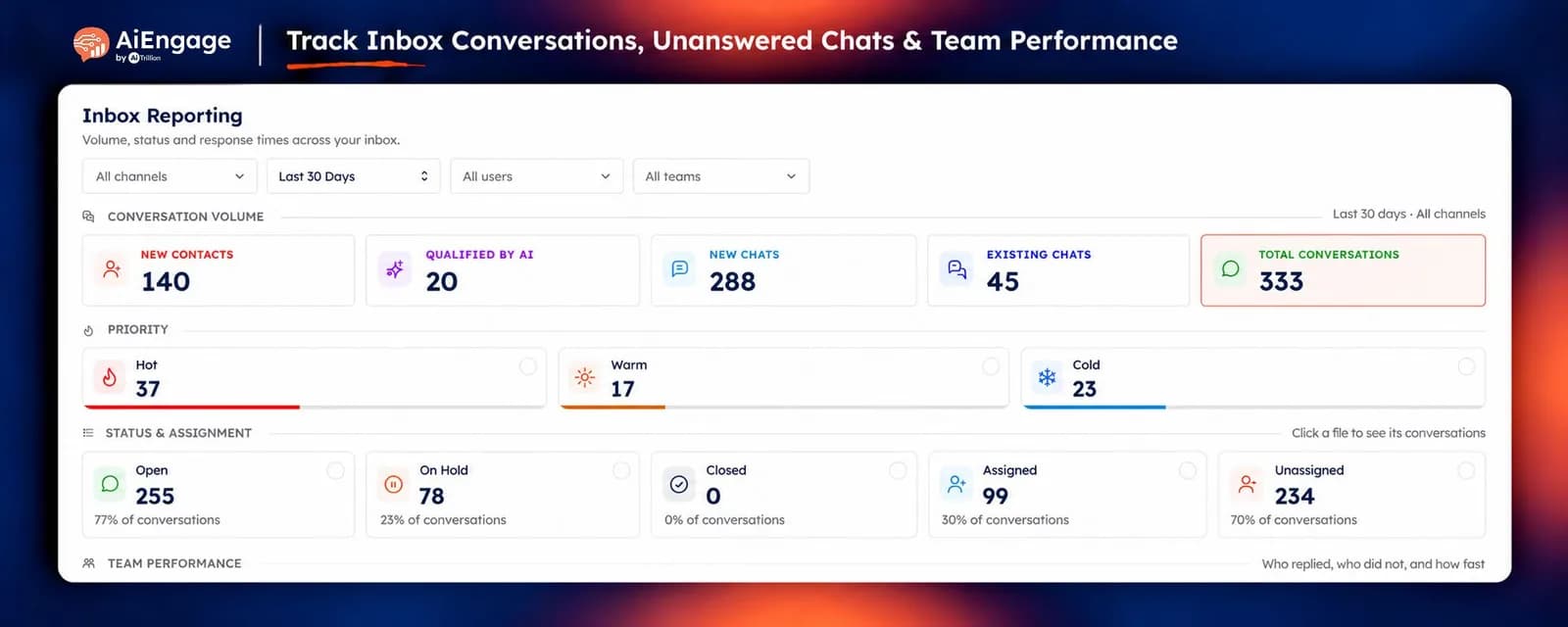
Is every customer conversation getting the attention it needs? With Team Inbox Reporting in AiEngage CRM, you can track conversation volume, AI-qualified contacts, chat status, ownership, and agent activity from one screen.
Clickable metrics let you open the conversations behind the numbers, helping your team identify pending work and take action.
🆕 Features
Track New Contacts & Conversation Volume
See how much activity your inbox handled during a selected period.
The conversation volume section includes:
New Contacts: Contacts created during the period whose first conversation also started within it.
Qualified by AI: Those new contacts moved to a qualified stage by an AI agent.
New Chats: Conversations created during the selected period.
Existing Chats: Conversations started earlier that were active during the period.
Total Conversations: All conversations with activity during the period.
This helps you understand how much work comes from new enquiries and ongoing customer conversations.
Monitor Conversations by Priority
View conversations grouped by Hot, Warm, and Cold priority.
Your team can use this breakdown to identify high-priority conversations and see whether they are getting attention.
View counts for each priority.
Open the conversations behind each count
Identify hot conversations that need follow-up
Review how priority is distributed across your inbox
Conversations without a priority are excluded from these three categories.
See Open, On-Hold & Unassigned Chats
Track the current status and ownership of conversations active during your selected period.
Each tile shows a count and its percentage of the period’s conversations.
Open: Conversations still needing attention.
On Hold: Conversations paused while waiting for the customer or another team.
Closed: Conversations marked Solved, plus conversations with Blocked contacts
Assigned: Conversations with an owner
Unassigned: Conversations waiting for someone to take ownership
Click Unassigned to see the chats your team needs to pick up.
Review Inbox Status → Open Pending Conversations → Identify Ownership Gaps → Take Action
Review Each Agent’s Conversation Activity
The Team Performance table shows how conversations are distributed and handled across your team.
For each agent, you can review:
Assigned: Conversations assigned to them during the period
Replied: Conversations they answered
Never Replied: Conversations assigned during the period that nobody has answered
Sent: Total messages sent by the agent
Open, Hold & Closed: The current status breakdown of their conversations
A separate Unassigned row shows the open pool.
The Never Replied count excludes conversations already answered by AI, helping you focus on customers who are still waiting for a response.
Open the Conversations Behind Your Reports
Click a status tile, priority tile, Total Conversations, or an agent’s row to open a detailed conversation panel.
Each conversation shows:
Contact name and phone number
Channel
Current status
Assigned owner
Time taken for the first response
Who has viewed the chat
Last activity
A blank first-response value indicates that the conversation is still waiting for its first reply.
The New Contacts and Qualified by AI tiles open contact lists with details such as email, phone, owner, and creation date.
Filter Reports by Channel, Date, User & Team
Focus the entire report on the activity you want to review.
Available filters include:
Channel: All channels, WhatsApp, or Bot
Date Range: Preset periods, Any Time, or a Custom Range
User: A specific agent
Team: A specific team
Every section updates to reflect your selected filters.
Filter selections are saved in the page URL, so you can bookmark a regular reporting view or share it with a colleague. Each person’s access permissions still apply.
Customize Your Team Performance View
Adjust the table to focus on the metrics that matter to your team.
Sort by column headers
Show or hide columns using View
Change the number of rows per page
Review individual agents or the wider team
For example, sort by Never Replied to identify unanswered conversations, or by Assigned to review workload distribution.
❤️ Why You'll Love It
Clear Inbox Visibility: See incoming volume, conversation status, and ownership together.
Faster Follow-Ups: Find unanswered and unassigned chats directly from the report.
Better Workload Reviews: Understand how conversations are distributed across agents.
Visible AI Contribution: Track new contacts qualified by your AI agent.
Actionable Reporting: Open the exact conversations behind a metric.
Focused Team Reviews: Filter the whole report by agent, team, channel, or date.
Reusable Reporting Views: Bookmark filtered views for regular checks.
🎯 Use Cases
Morning Inbox Checks: Review unassigned conversations and identify chats needing an owner.
Weekly Response Reviews: Check Never Replied counts and follow up on customers still waiting.
Sales Prioritization: Open Hot conversations to review high-priority enquiries.
Agent Workload Reviews: Compare assigned and replied conversations to spot where support is needed.
AI Qualification Tracking: Review the new contacts qualified by your AI agent.
Monthly Activity Reviews: Compare new contacts and conversation volume across reporting periods.
Team Handoffs: Check ownership, first response, and last activity before coordinating follow-up.
For more details on using this feature, visit our Help Center or contact our support team.
New to AiEngage CRM? Sign Up